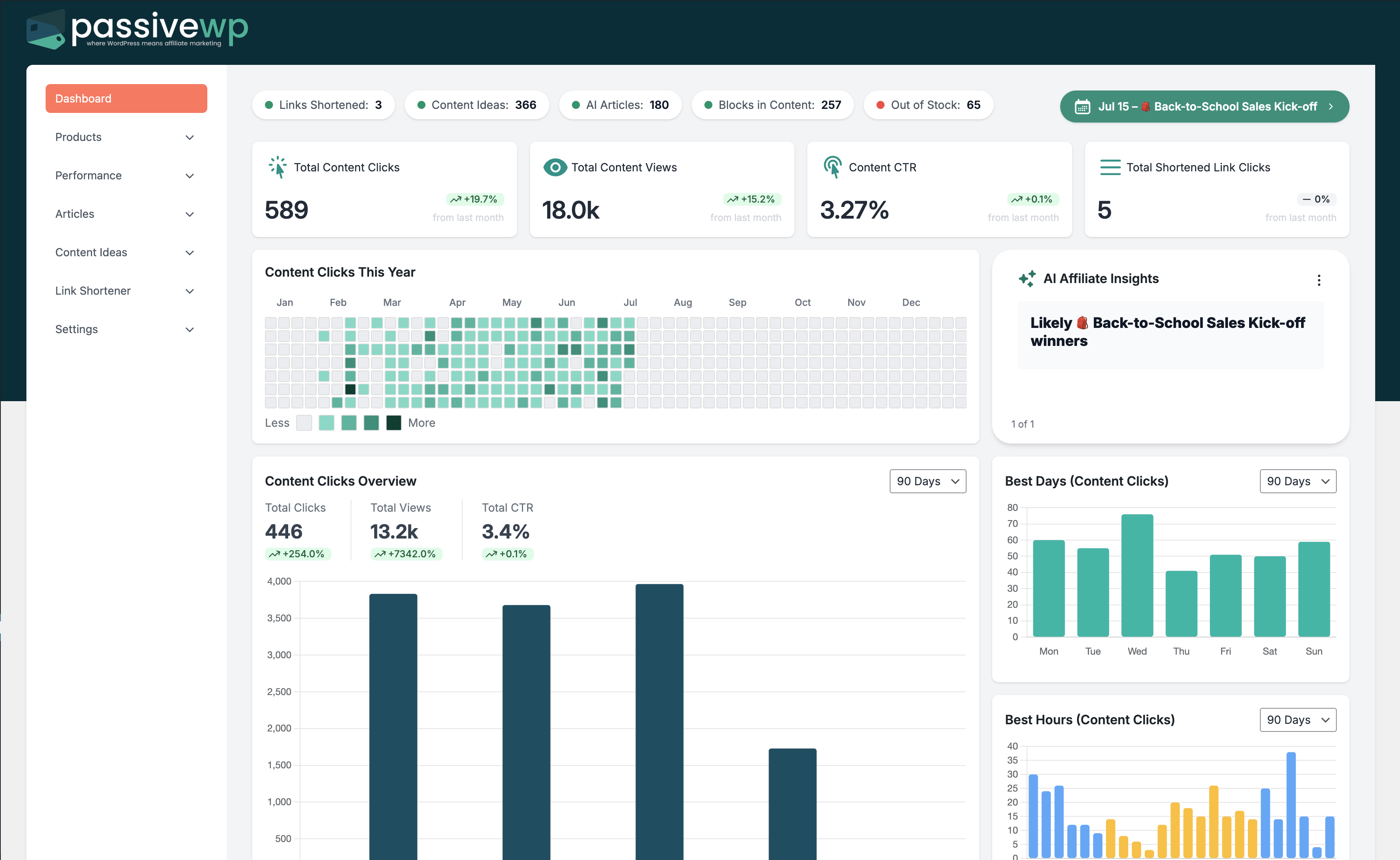
Automated reports keep your affiliate operation accountable even when schedules get busy.
When to Use This Guide
Use this when your team needs regular visibility into affiliate performance and clear weekly decisions.
Before You Start
- You are logged into WordPress with an Administrator account.
- You can open PassiveWP -> Settings -> Reports.
- You have the recipient email addresses you want to use.
Exact Menu Path
WordPress Admin -> PassiveWP
Step-by-Step Walkthrough
Step 1: Set report cadence based on your traffic and campaign volume.
Go here WordPress Admin→PassiveWP
Do this Use WordPress Admin→PassiveWP to run generation for one item first, review the output manually, then continue with the remaining items.
Confirm Generation should complete without authentication, quota, or model errors.
Step 2: Add recipients responsible for taking action.
Go here WordPress Admin→PassiveWP
Do this In WordPress Admin→PassiveWP, do this in order: open the relevant panel, find the control related to "Add recipients responsible for taking action.", apply one change, click Save/Run, then reload once to confirm it stuck.
Confirm New rows should appear in the list and be editable.
Step 3: Confirm delivery with a first test cycle.
Go here WordPress Admin→PassiveWP
Do this Open WordPress Admin→PassiveWP, click the test/validate action in that screen, and wait for the result notice before continuing.
Confirm You should see a Connected/Success result with no red error notice.
Step 4: Use a fixed weekly review agenda tied to report metrics.
Go here WordPress Admin→PassiveWP
Do this In WordPress Admin→PassiveWP, do this in order: open the relevant panel, find the control related to "Use a fixed weekly review agenda tied to report metrics.", apply one change, click Save/Run, then reload once to confirm it stuck.
Confirm No blocking error banner appears, and the next step is available.
Quick Troubleshooting Checks
- Send a test report and confirm delivery before relying on schedule.
- Check spam/junk and recipient typos first.
- Confirm report frequency and recipient list are saved.
Common Mistakes to Avoid
- Setting reports and never validating actual inbox delivery.
- Reviewing vanity metrics without conversion context.
- Not assigning report ownership in teams.
Success Checklist
- Report cadence is active and matches your workflow.
- Recipients confirmed receipt of reports.
- Review process includes action items, not just screenshots.
Pro Tips for Affiliate Marketers
- Use one weekly review template so actions are consistent.
- Track 3-5 core KPIs only.
- Tie every report review to one next action.
If You Get Stuck
Open the matching troubleshooting article in this help center and repeat one step at a time instead of changing multiple settings at once.