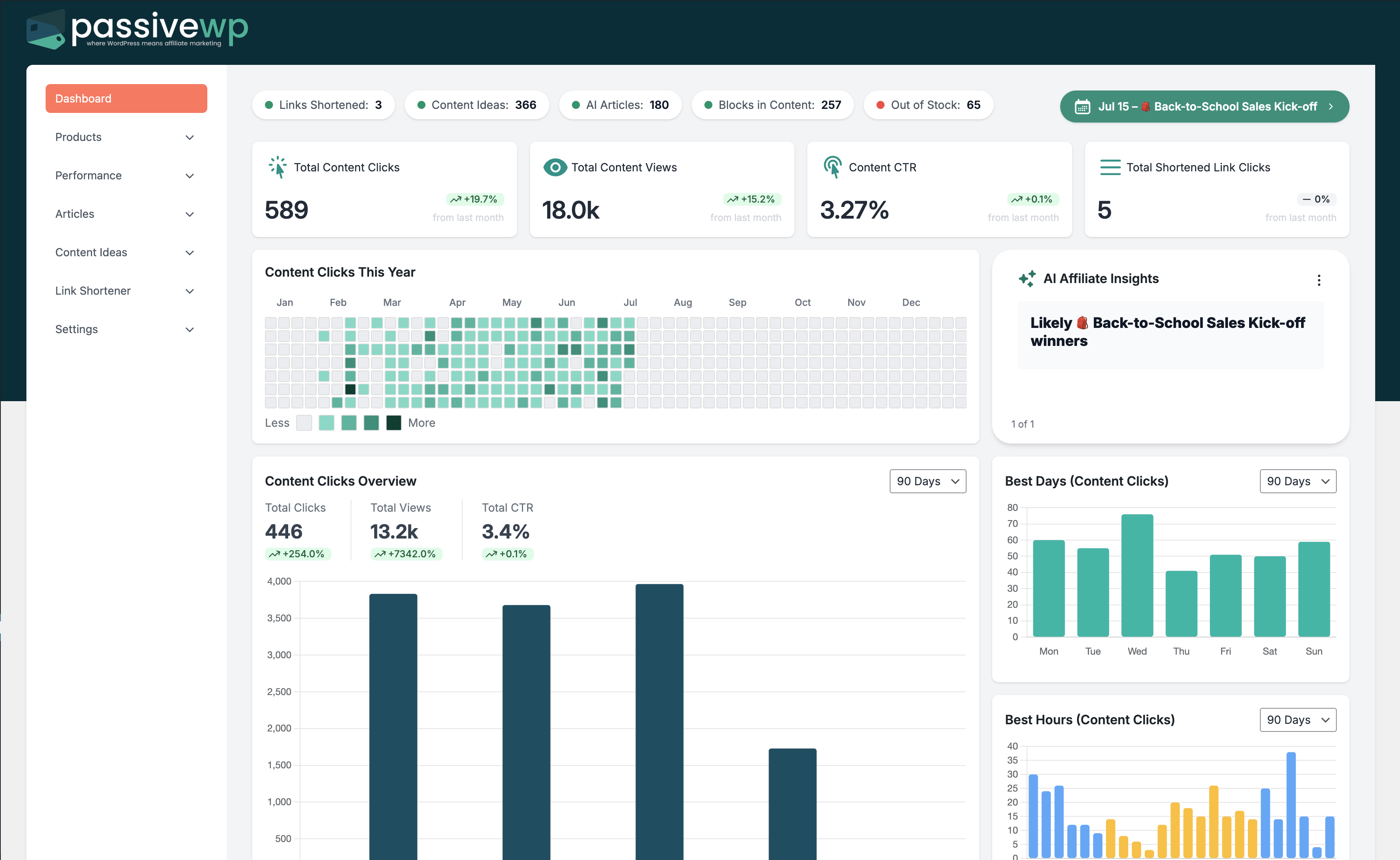
A repeatable KPI rhythm is the fastest path to compounding affiliate gains.
When to Use This Guide
Use this when you already have enough data to improve CTR, conversion rate, or EPC without guessing.
Before You Start
- You have at least 2-4 weeks of performance data.
- You can open PassiveWP analytics screens for links/products/content.
- You can update one variable at a time and track changes.
Exact Menu Path
WordPress Admin -> PassiveWP
Step-by-Step Walkthrough
Step 1: Track clicks, unique users, conversion rate, and revenue trend.
Go here WordPress Admin→PassiveWP
Do this In WordPress Admin→PassiveWP, do this in order: open the relevant panel, find the control related to "Track clicks, unique users, conversion rate, and revenue trend.", apply one change, click Save/Run, then reload once to confirm it stuck.
Confirm No blocking error banner appears, and the next step is available.
Step 2: Monitor out-of-stock impact on top pages.
Go here WordPress Admin→PassiveWP
Do this In WordPress Admin→PassiveWP, do this in order: open the relevant panel, find the control related to "Monitor out-of-stock impact on top pages.", apply one change, click Save/Run, then reload once to confirm it stuck.
Confirm No blocking error banner appears, and the next step is available.
Step 3: Review AI content quality vs conversion outcomes.
Go here WordPress Admin→PassiveWP
Do this Use WordPress Admin→PassiveWP to run generation for one item first, review the output manually, then continue with the remaining items.
Confirm Generation should complete without authentication, quota, or model errors.
Step 4: Prioritize one experiment each week and record results.
Go here WordPress Admin→PassiveWP
Do this In WordPress Admin→PassiveWP, do this in order: open the relevant panel, find the control related to "Prioritize one experiment each week and record results.", apply one change, click Save/Run, then reload once to confirm it stuck.
Confirm No blocking error banner appears, and the next step is available.
Step 5: Scale only proven improvements.
Go here WordPress Admin→PassiveWP
Do this In WordPress Admin→PassiveWP, do this in order: open the relevant panel, find the control related to "Scale only proven improvements.", apply one change, click Save/Run, then reload once to confirm it stuck.
Confirm No blocking error banner appears, and the next step is available.
Quick Troubleshooting Checks
- Compare at least 2-4 weeks instead of one-day changes.
- Change one variable at a time and log the test.
- Re-verify tracking integrity before acting on performance shifts.
Common Mistakes to Avoid
- Trying to optimize everything at once.
- Making decisions from tiny sample sizes.
- Ignoring mobile behavior differences.
Success Checklist
- One optimization goal selected per week.
- Metrics baseline captured before changes.
- Changes documented with date and hypothesis.
Pro Tips for Affiliate Marketers
- Start with highest-traffic, highest-intent pages.
- Prioritize click quality over raw click volume.
- Use 2-4 week windows for reliable comparisons.
If You Get Stuck
Open the matching troubleshooting article in this help center and repeat one step at a time instead of changing multiple settings at once.