Match your workflow to available features so you avoid building processes that your current plan does not support.
When to Use This Guide
Use this when you are setting up PassiveWP for the first time or tightening your weekly operating process.
Before You Start
- You are logged into WordPress with an Administrator account.
- PassiveWP is installed and activated.
- You can open the PassiveWP menu in wp-admin.
Exact Menu Path
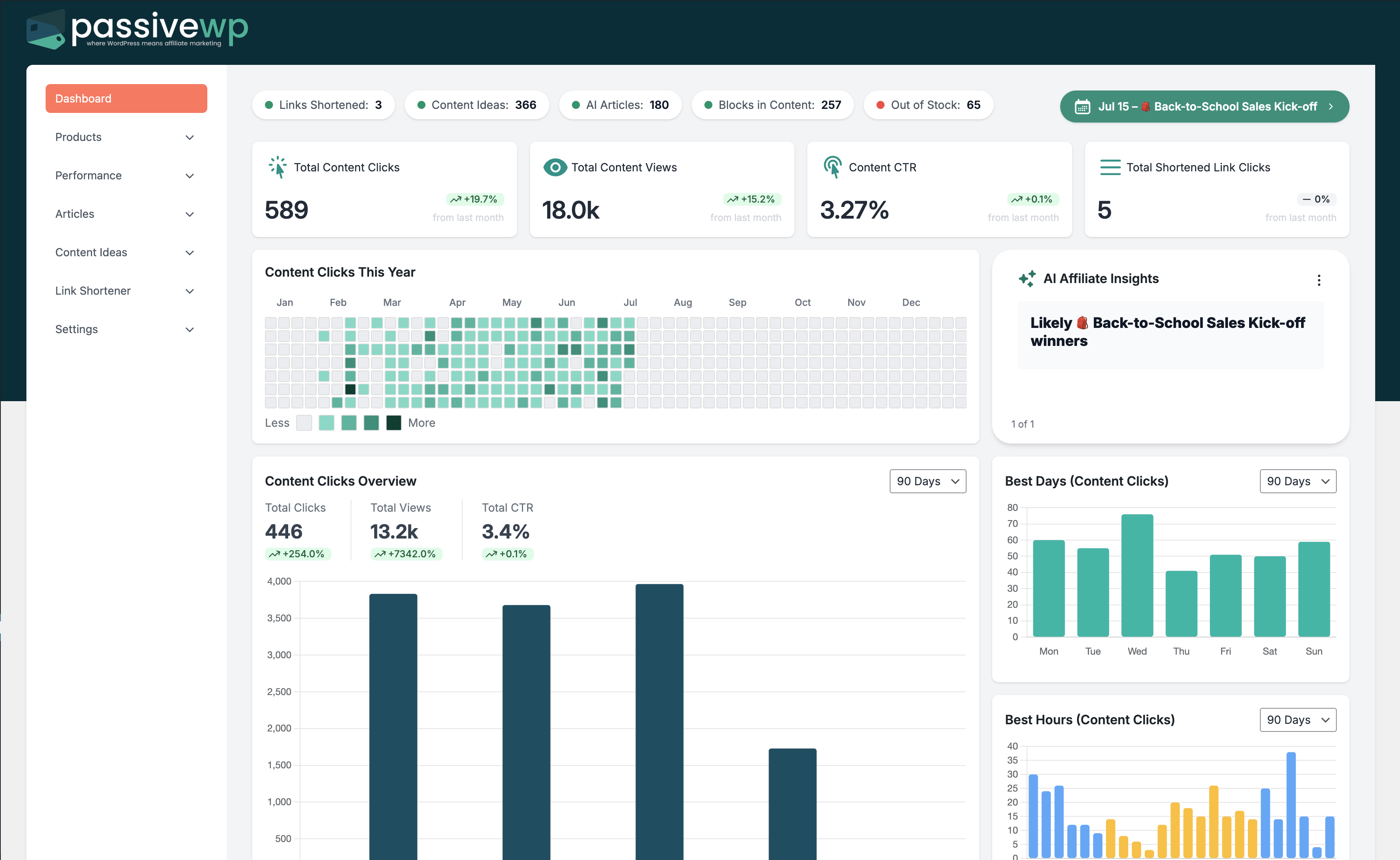
WordPress Admin -> PassiveWP -> Dashboard
Step-by-Step Walkthrough
Step 1: List the outcomes you need now: products, branded links, AI content, or earnings insights.
Go here WordPress Admin→PassiveWP→Dashboard
Do this Use WordPress Admin→PassiveWP→Dashboard to run generation for one item first, review the output manually, then continue with the remaining items.
Confirm Test clicks should land on the expected destination with attribution parameters intact.
Step 2: Confirm which plan-level features are available in your dashboard.
Go here WordPress Admin→PassiveWP→Dashboard
Do this Use WordPress Admin→PassiveWP→Dashboard to run generation for one item first, review the output manually, then continue with the remaining items.
Confirm Generation should complete without authentication, quota, or model errors.
Step 3: Prioritize one monetization flow before scaling to advanced automations.
Go here WordPress Admin→PassiveWP→Dashboard
Do this In WordPress Admin→PassiveWP→Dashboard, do this in order: open the relevant panel, find the control related to "Prioritize one monetization flow before scaling to advanced automations.", apply one change, click Save/Run, then reload once to confirm it stuck.
Confirm No blocking error banner appears, and the next step is available.
Step 4: Document a 30-day execution plan based on currently unlocked tools.
Go here WordPress Admin→PassiveWP→Dashboard
Do this In WordPress Admin→PassiveWP→Dashboard, do this in order: open the relevant panel, find the control related to "Document a 30-day execution plan based on currently unlocked tools.", apply one change, click Save/Run, then reload once to confirm it stuck.
Confirm No blocking error banner appears, and the next step is available.
Quick Troubleshooting Checks
- Refresh the page and confirm your WordPress user still has Administrator access.
- Save once, then reload to confirm changes persisted.
- Test one workflow at a time to isolate the issue.
Common Mistakes to Avoid
- Skipping setup tests and assuming everything is connected.
- Changing too many settings at once and losing track of what worked.
- Going live without a final click-through and conversion test.
Success Checklist
- Core settings saved successfully.
- At least one test completed end-to-end.
- You documented what changed and why.
Pro Tips for Affiliate Marketers
- Change one variable at a time so you can isolate results.
- Track outcomes weekly instead of reacting to one-day swings.
- Focus on revenue per click, not just traffic volume.
If You Get Stuck
Open the matching troubleshooting article in this help center and repeat one step at a time instead of changing multiple settings at once.